Getting Started with Odoo: How to Create Your First Sales Quotation in Minutes
Order to Cash in Odoo—from draft quote to invoice—for Kuwait and the Gulf.
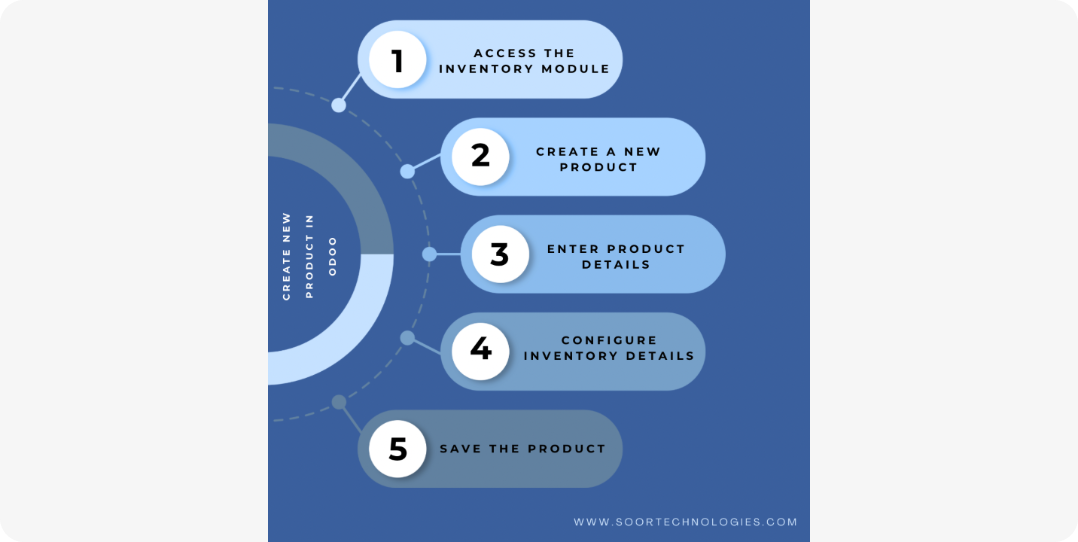
If you're new to Odoo, one of the easiest ways to get started is by creating your first sales quotation. A quotation in Odoo is not just a simple price list: it is a structured sales document that links your customers, products, pricing, and tax rules in one place. In this in-depth guide, Soor Technologies will walk you through how to create your first sales quotation in Odoo step by step, so you can start using Odoo confidently for your business in Kuwait and the wider Gulf region.
Why sales quotations matter in Odoo
In Odoo, a sales quotation plays a central role in the Order to Cash cycle. It helps you present professional, formatted offers to customers; define quantities, unit prices, discounts, and taxes clearly; track which quotes are pending, approved, or rejected; and later convert quotations into sales orders and then into invoices.
Using quotations correctly from the beginning helps you avoid manual pricing mistakes, keep a clear audit trail of offers sent to each customer, and build a clean, repeatable sales workflow that your team can follow every time.
For businesses in Kuwait, Odoo quotations also make it easy to handle VAT-inclusive pricing, multi-currency offers, and multi-branch operations in a consistent way.
Step 1: Navigate to the Sales app
Before you create your first quotation, make sure you're in the right place. Log in to your Odoo instance using your credentials. On the main dashboard, click the Sales app icon (usually represented by a shopping cart or invoice icon). In the Sales module, make sure you are in the Quotations view. In Odoo, quotations are often listed under a Quotations tab or menu on the left-hand side.
If this is your first time in Odoo, confirm that at least one customer and one product exist in the system. If not, create them first (we explain that briefly in the next step).
Step 2: Create a new customer (if needed)
Odoo quotations are always linked to a customer record. If you don't have one yet, while in the Sales app click Create (or New Quotation). In the Customer field, start typing the customer's name. If the customer doesn't exist, click Create a new customer.
Fill in basic details such as customer name, email address, phone number, and address (billing and shipping, if different). By creating a proper customer record, you'll later be able to track all quotations and sales for that customer and apply customer-specific pricelists and payment terms automatically.
Step 3: Start a new quotation
Once you've selected or created a customer, Odoo will open the quotation form. You'll see customer information at the top; quotation date and expiration date (you can change these if needed); pricelist (if configured) that defines how prices are calculated; and an empty product lines section where you will add items.
At this stage, your quotation is in draft mode and not yet sent to the customer. You can save it and come back later if you're not ready to send it immediately.
Step 4: Add products to the quotation
In the Order Lines (or Product Lines) section, click Add a product (or Add a line). Start typing the product name or internal reference (SKU) and select the correct item from the dropdown. For each selected product, Odoo will automatically fill the product name, unit of measure, unit price (from the product's sales price or pricelist), and taxes (based on the product's tax template).
You can then adjust the quantity to match what the customer needs; change the unit price if this is a special case (for example a one-time discount); add a discount (percentage or fixed amount) in the Discount field, if your Odoo setup allows it; and add notes specific to that line, such as delivery conditions or remarks.
If your quotation includes multiple products, repeat the process and add as many lines as needed. Odoo will keep the subtotal, taxes, and total updated in real time.
Step 5: Customize quotation details
Modern Odoo versions let you customize the quotation to match your brand and terms. Set quotation date and validity: use a clear expiration date (for example valid for 7 days) to encourage timely decisions.
Assign payment terms if your company has standards (for example Net 30 days) so the customer understands when to pay after order confirmation. Add delivery and shipping details such as delivery notes, delivery method, or shipping remarks if relevant.
Use the Internal Notes field (if available) to add comments for your team that won't appear in the customer-facing PDF.
Step 6: Review pricing and taxes
Before sending the quotation, double-check the numbers. Look at the Summary section at the bottom of the form: subtotal, taxes (for example VAT, if applicable), and total amount.
Confirm that prices match your agreed commercial terms, taxes are applied correctly for your region (for example Kuwaiti VAT settings), and any discounts are applied only where intended—not to the whole quotation by mistake.
If something looks wrong, go back to product settings to adjust the sales price or tax template, or check pricelists to ensure the right price list is assigned to this customer or quotation.
Step 7: Save, preview, and send the quotation
When everything looks correct, click Save to store the quotation in Odoo. The quotation will appear in your Quotations list with a status such as Draft or Quotation Sent, depending on your workflow.
To send it to the customer, click Send by Email (or Send & Print, depending on your version). Odoo will open a customizable email composer with a clear subject line (for example Your Odoo Sales Quotation), a short message body, and the quotation attached as a PDF.
Edit the subject and message if needed—for example to say that the quotation is attached for review and confirmation before proceeding with the order—then click Send. Your customer receives a professional-looking PDF quotation, and the record stays in Odoo for follow-up.
Step 8: Convert quotation to sales order
If the customer approves the quotation, open it in Odoo and click Confirm Quotation (or Create Sales Order, depending on labels in your version). Odoo will create a sales order linked to the same customer and products and carry over the pricing, quantities, and notes from the original quotation.
From there, your team can manage delivery via stock or shipping rules, confirm delivery orders if inventory is involved, and later create an invoice (manually or automatically) based on the sales order.
This end-to-end flow ensures that everything from the initial quotation to the final invoice is traceable and consistent.
Advanced tips for better quotation management in Odoo
1. Use pricelists for multiple customers. Instead of manually changing prices for every customer, create different pricelists—for regular customers, VIP or long-term clients, or regions and branches—and assign the right pricelist to each customer or quotation so Odoo auto-calculates prices.
2. Standardize quotation templates. Design a standard quotation template (header, logo, terms, footer) so every quote looks professional and consistent, with clear payment terms, validity period, and contact details.
3. Automate approval workflows. If your company needs manager approval for high-value quotations, configure approval workflows in Odoo so quotations move through defined steps before being sent.
4. Track quotation statuses. Use Odoo's status tags (for example Draft, Sent, Expired, Won, Lost) to track which quotes are pending, which have been converted into orders, and which have been rejected—helping you analyze your sales pipeline and conversion rates.
5. Test in a staging environment. If you're customizing quotation templates, email layouts, or approval rules, test everything in a non-live staging environment first. This prevents mistakes in your production system and keeps real customer data safe.
Call to action for Soor Technologies
If you're just getting started with Odoo and want to make sure your sales quotations, orders, and invoices are set up correctly, Soor Technologies can help. We provide Odoo setup, configuration, and training services tailored to businesses in Kuwait and the Gulf region, so your team can create quotations quickly and accurately from day one.
Contact Soor Technologies today to schedule a free Odoo onboarding session and learn how to create your first sales quotation and many more with confidence.